Guide 12 of 15 · Team and connections
Connecting Xero and your calendar
Connect the apps you already use. Accepted quotes can become Xero invoices, and accepted jobs can go straight into your calendar.
Xero
-
Choose Xero for payments
In Settings > Payments, choose Xero and save.
-
Connect
In Settings > Connections, press Connect to Xero, sign in to Xero itself, allow access and pick your organisation. We never see your Xero password.
-
Check the invoice settings
The account code and tax rates, one invoice per job or one per payment stage, and whether invoices start as drafts for you to check.
-
Let it run
When a customer accepts, the invoice is made in Xero. When it is paid in Xero, it shows as paid here. The Sync log shows what went across.
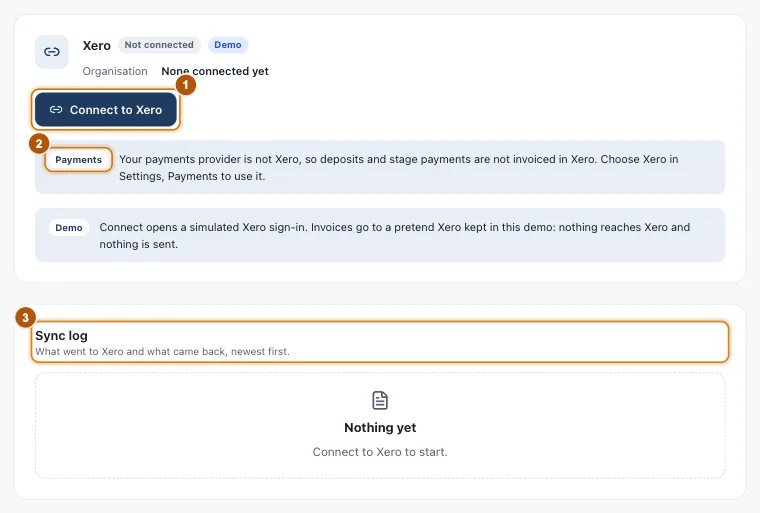
- Marker 1: Connect to Xero
- Marker 2: Your payments provider must be Xero
- Marker 3: Sync log
Your calendar
-
Connect your calendar
In Connections > Calendar, connect Google Calendar or Outlook. Each person on your team connects their own.
-
Choose where jobs go
Add jobs to picks the calendar.
-
Set your booking settings
Working hours and days, travel time kept free around each job, and your usual job length.
-
Book a job
When a customer accepts, the quote shows Book the job and you pick the time. A clash is a warning, never a block.
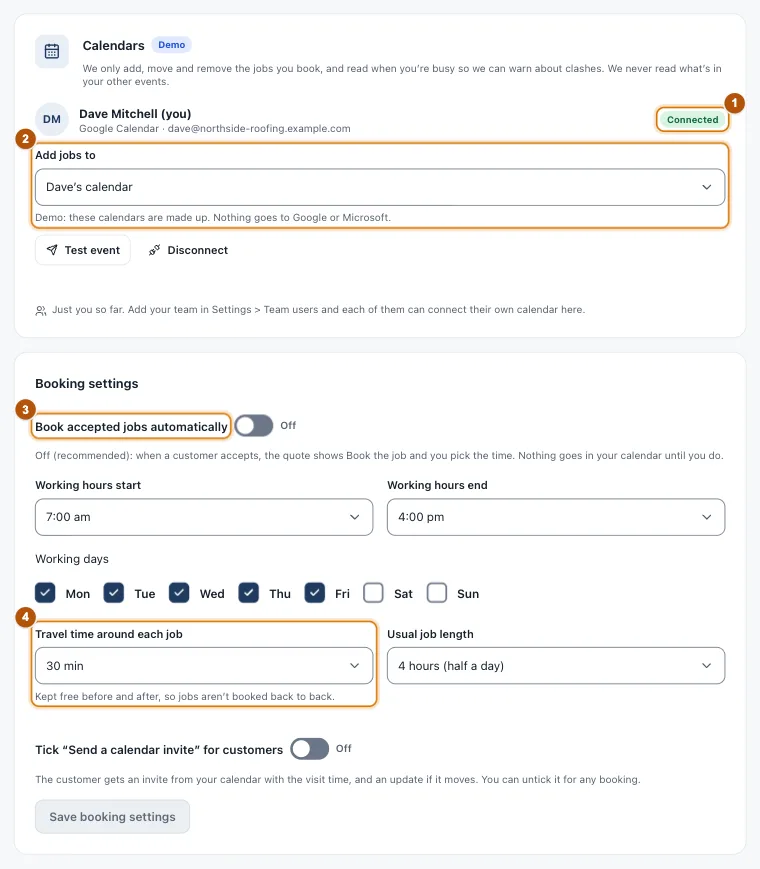
- Marker 1: Connected
- Marker 2: Add jobs to
- Marker 3: Book accepted jobs automatically
- Marker 4: Travel time around each job
Still stuck?
Reply to any email from us, or contact us using the form on the home page.