Guide 11 of 15 · Team and connections
Your profile and your team
Your profile is how customers see you on quotes and emails. Your team is everyone who can use your account, and what each person can do.
Your profile
-
Add a photo
In Settings > My profile, press Choose a photo. It is cropped to a circle.
-
Your name and job title
Your name shows as “Prepared by” on quotes and signs your emails. It is the same name as in Business details, so changing one changes both.
-
Your contact details
Your mobile and email. Alerts and replies come to that email.
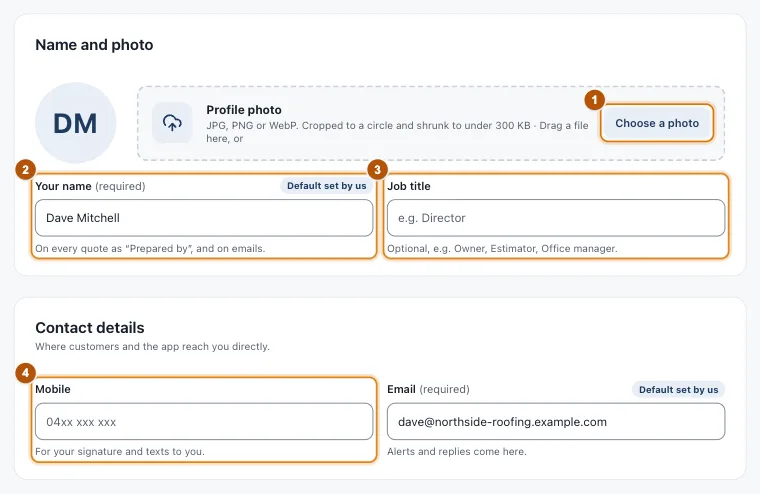
- Marker 1: Choose a photo
- Marker 2: Your name
- Marker 3: Job title
- Marker 4: Your mobile
Show my photo and direct contact on PDF quotes is off to start with. Under Notifications, each person chooses what they hear about, by email, text or push.
Your team
In Settings > Team users, fill in Invite someone: their email, their name and a role.
- Owner: everything, including billing and the team.
- Admin (Manager): quotes, prices, settings and the team. No billing.
- Estimator: creates and sends quotes. Can’t see costs or change prices.
- Office (Viewer): sees every quote and keeps customer details up to date.
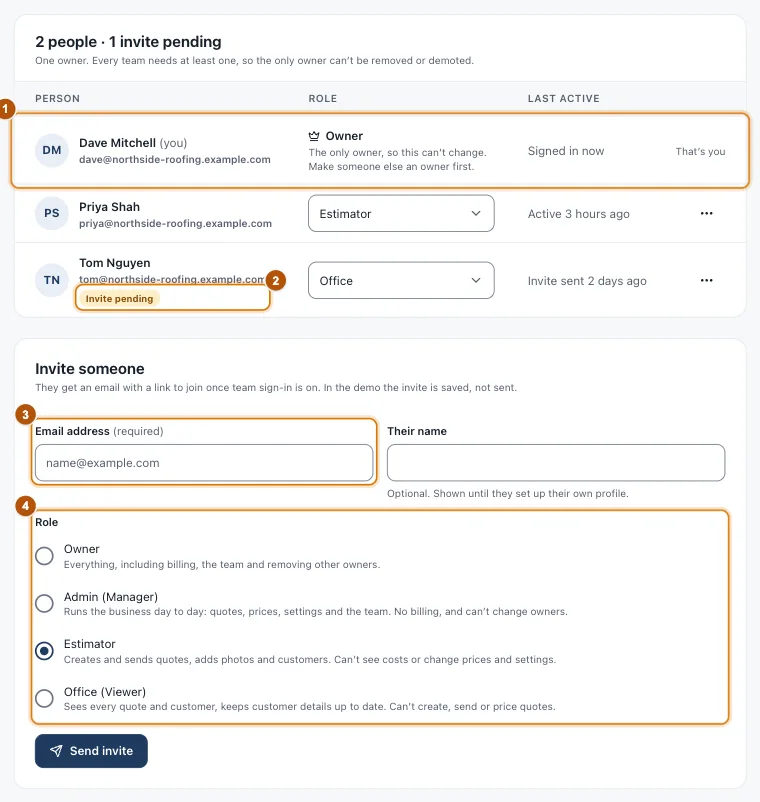
- Marker 1: You, the owner
- Marker 2: An invite waiting to be accepted
- Marker 3: Their email
- Marker 4: Their role
Still stuck?
Reply to any email from us, or contact us using the form on the home page.