Guide 13 of 15 · Quotes and prices
Undo, versions and the Trash
Every change can be taken back, so you can work fast without worrying.
Undo a change in a quote
-
Press Undo
Press the Undo arrow at the top of the quote, or press Ctrl+Z (⌘Z on a Mac) when you’re not typing in a box.
-
See what it will undo
Hover the arrow to see what it will take back, like “Undo: removed line Rubbish bin”.
-
Changed your mind?
Press Redo, or Shift+Ctrl+Z.
Removing a line, section or photo, or loading a job type over your lines, also shows Undo at the bottom of the screen.
Go back to an earlier version
In the quote, press ⋯, then Saved versions. Each version says who changed what, and when, and the last 20 are kept. Restore this version leaves the status and the activity log as they are, and a restore can be undone too.
Get a deleted quote back
-
Open the Trash
Go to Quotes and tap Trash.
-
Restore it
Press Restore on the quote. Its follow-ups carry on where they paused.
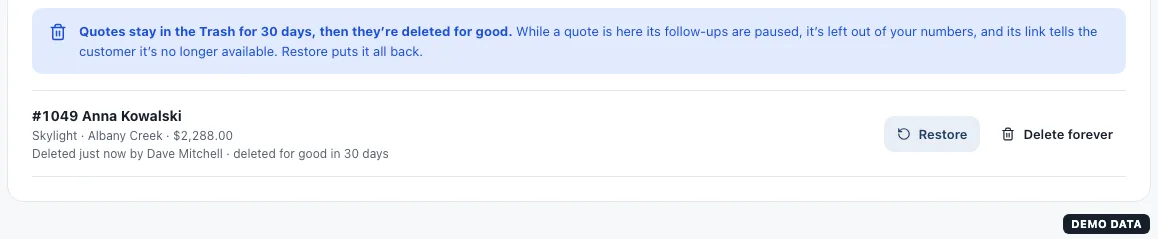
Quotes stay in the Trash for 30 days. While there, they are left out of your numbers and the customer’s link says the quote is no longer available.
In Settings, every save shows Undo, and Change history goes further back.
Still stuck?
Reply to any email from us, or contact us using the form on the home page.