Guide 9 of 15 · Follow-ups and messages
Reading the quote activity log
Every quote has an activity log: what went out, whether it arrived, when it was opened and what goes next. It tells you who is worth a call today.
Open a quote’s activity
On your dashboard or in the quotes list, tap a quote’s status, such as Follow-up 1 · opened. Its activity opens beside the list.
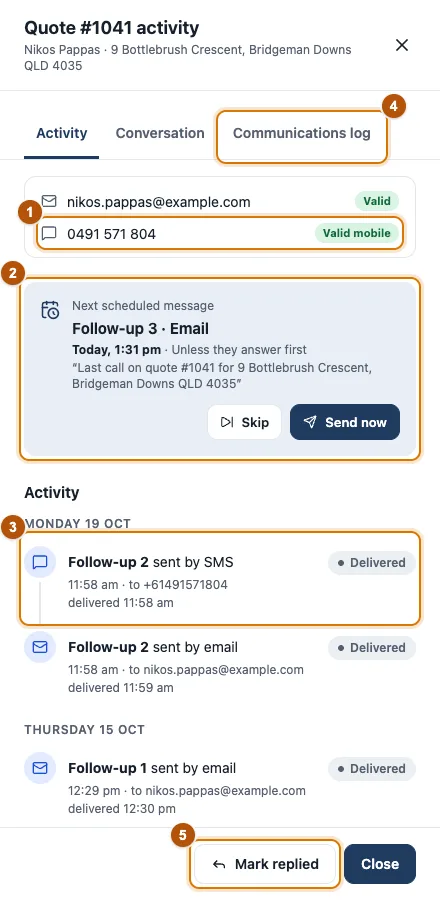
- Marker 1: Who it goes to, checked
- Marker 2: The next message, with Skip and Send now
- Marker 3: What happened, newest first
- Marker 4: Communications log
- Marker 5: Mark replied
What each part tells you
-
Who it goes to
The customer’s email and mobile, checked. If an email bounces you see it here, with a button to fix the address.
-
The next message
What goes next, by email or text, and when. It only goes if they haven’t answered first. Skip stops it; Send now sends it early.
-
What happened
Each message sent, delivered or bounced, by day. “Opened via SMS, follow-up 2, on a phone” tells you which message got them to look.
-
Conversation and Communications log
Conversation shows texts back and forth. Communications log lists every email, text and change on the quote, with filters for texts, emails and activity.
-
Mark replied
If the customer called or emailed you back, tap Mark replied so the reminders stop. Text replies are picked up by themselves.
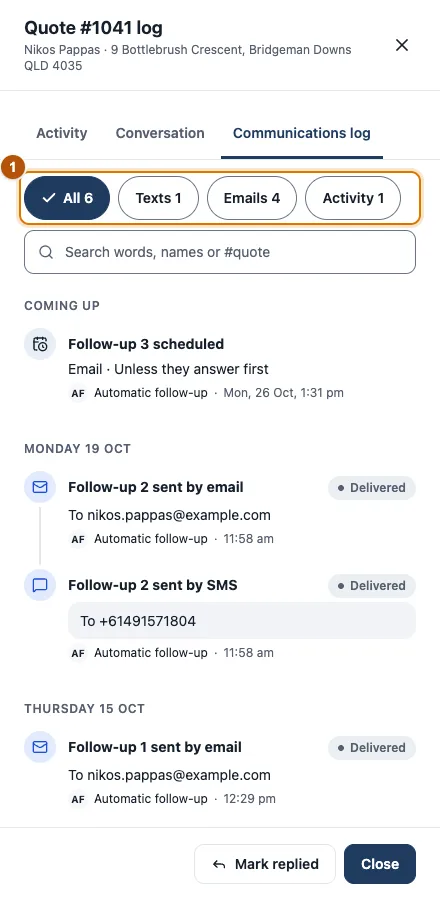
- Marker 1: Filter by texts, emails or activity
Still stuck?
Reply to any email from us, or contact us using the form on the home page.