Guide 8 of 15 · Getting paid
How customers pay (bank transfer, card, Xero)
When a customer accepts, they see how to pay you: the deposit, its due date and your payment details. Your bank details only show once they have said yes.
Choose how you get paid
-
Pick a provider
In Settings > Payments, choose one:
- No payments: you sort it out the way you do now.
- Manual: you send your own invoice and tap Mark deposit received when the money lands.
- Stripe: customers pay by card online. The money goes to your own Stripe account, and Stripe’s own fees apply.
- Xero: accepted quotes become Xero invoices. See Connecting Xero and your calendar.
-
Set your deposit and stages
A deposit on acceptance, any progress stages, then the final payment. They must add up to the full amount.
-
Set the due date and a reminder
Deposit due within shows the customer a date. Payment reminder after sends one friendly reminder if a payment is still open.
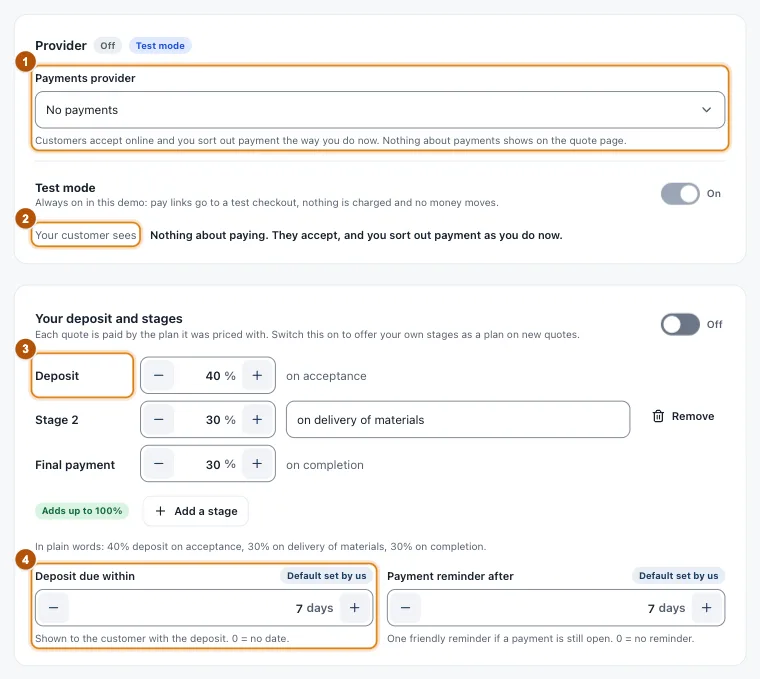
- Marker 1: Payments provider
- Marker 2: What your customer sees
- Marker 3: Your deposit and stages
- Marker 4: Deposit due within
What customers see after Accept
In Payment instructions, switch on each way you take money:
- Bank transfer: your account name, BSB and account number, with the quote number as the reference. These start empty: you type them in.
- Pay online: a Pay button, when your provider makes a pay link.
- Your own instructions: cash on the day, cheque, PayID, anything else.
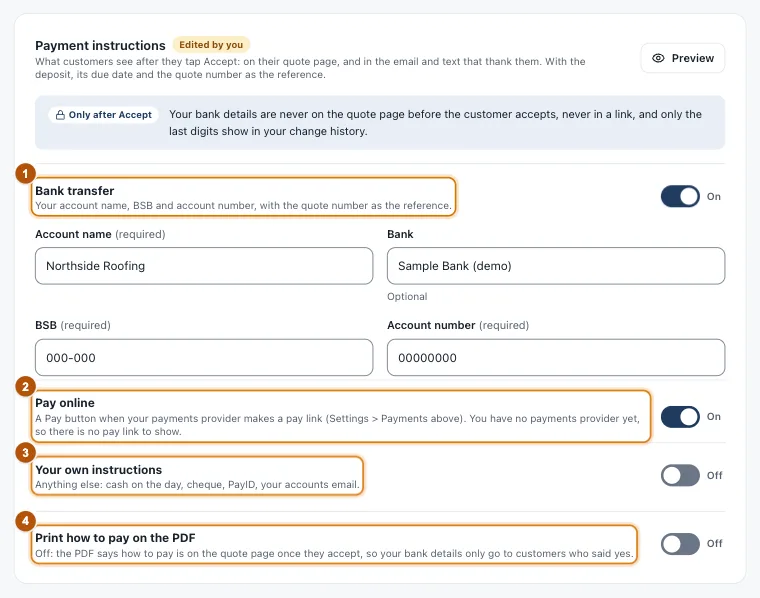
- Marker 1: Bank transfer
- Marker 2: Pay online
- Marker 3: Your own instructions
- Marker 4: Print how to pay on the PDF
As the work goes on, tap Stage complete on the quote and the customer gets the next payment request.
Still stuck?
Reply to any email from us, or contact us using the form on the home page.