Guide 6 of 15 · Follow-ups and messages
Texts, your dedicated number and replies
Texts get read. Follow-ups can go by email, by text or both, from a dedicated mobile number that is yours alone, so customers can text you back.
Set up texts
-
Switch texts on
In Settings > SMS, switch on Send follow-ups by SMS.
-
Your dedicated number
Customers see your texts come from this number, and their replies come back to you. Your own dedicated number is included. It is a real Australian mobile number, not a business name, so people can reply.
-
Your mobile
Add your own mobile. It is where “give them a call” alerts go, and customers never see it.
-
STOP is always on
Every text ends with “Reply STOP to opt out”. When someone replies STOP, texts and follow-up emails to them stop straight away.
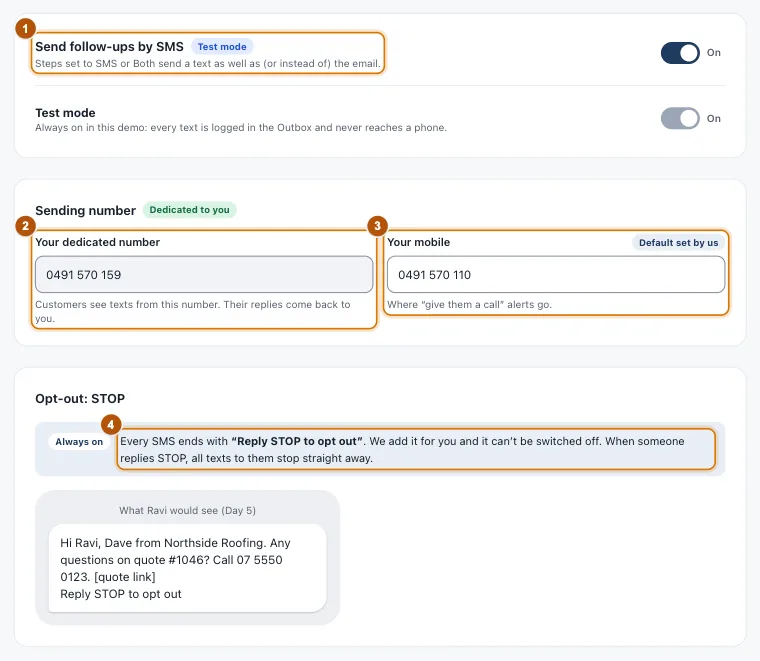
- Marker 1: Send follow-ups by SMS
- Marker 2: Your dedicated number
- Marker 3: Your mobile, for alerts
- Marker 4: Reply STOP, always on
Then choose which messages go by text: in Follow-ups & check-ups, set each one to SMS or Both.
When a customer replies
The reminders for that quote stop, and you get the customer’s words with their name and quote number. Choose how in Settings > Notifications.
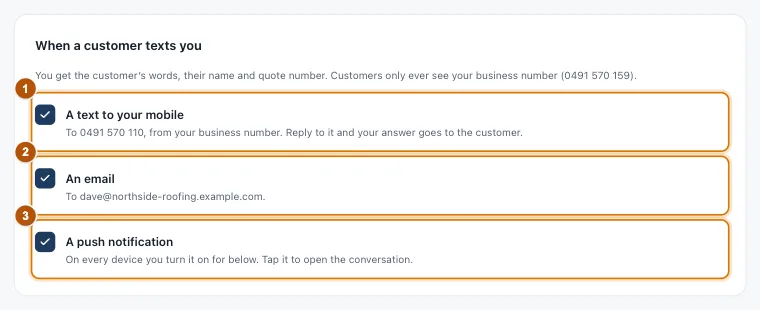
- Marker 1: A text to your mobile
- Marker 2: An email
- Marker 3: A push notification
Answer by replying to the alert from your own mobile: it goes to the customer from your dedicated number. Or answer from the quote’s Conversation tab. When you are ready, press Resume follow-ups.
Still stuck?
Reply to any email from us, or contact us using the form on the home page.