Guide 4 of 15 · Follow-ups and messages
Your tone of voice and follow-up wording
Your follow-ups start with plain, friendly wording from your trade’s template. They work as they are, but customers reply more readily to something that sounds like you. Change as much or as little as you like.
Change the wording
-
Open a message
Go to Settings > Follow-ups & check-ups and press Edit wording on the message you want to change. Each has an email subject, the email message and a text message.
-
Write it your way
Write it the way you would say it on the phone. Short sentences read best.
-
Use the fill-ins
Words in curly brackets are filled in for each customer: {client} is their first name, {number} the quote number, {quoteLink} the link to their quote. The full list sits under the message.
-
Keep texts to one
Under each text a meter shows its length. Over 160 characters it goes as two texts, and Use shorter wording trims it for you, keeping the link and quote number.
-
Preview it
Press Preview message to see it as a customer would, with a real quote filled in. Then save.
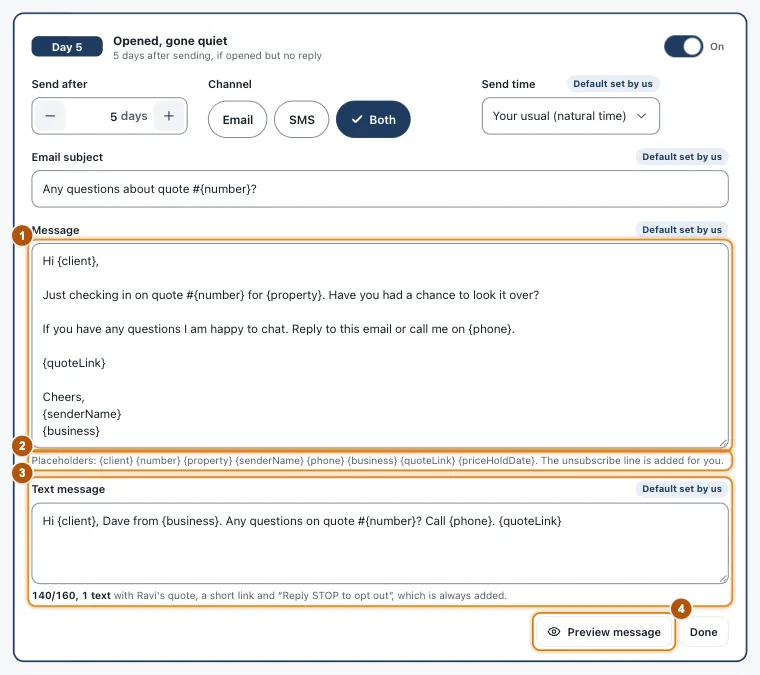
- Marker 1: The email message
- Marker 2: The fill-ins you can use
- Marker 3: The text message and its length
- Marker 4: Preview message
Your signature
Go to Settings > My profile > Email signature. It goes under “Cheers,” on quote, follow-up and payment emails. Leave it empty to sign with your first name and the business. Texts sign off with your first name.
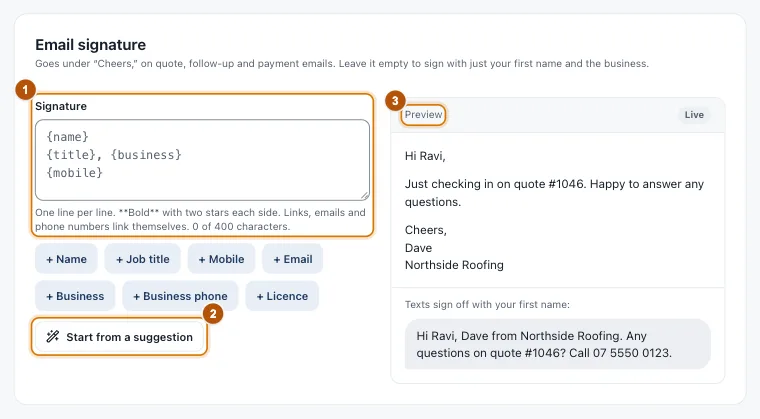
- Marker 1: Your signature
- Marker 2: Start from a suggestion
- Marker 3: The live preview
To change when each message goes, see When follow-ups go out.
Your quote wording
Use standard wording for this trade adds ready-made quote sections. Edit them in Settings > Standard wording, and check them with your adviser.
Before you send, Check wording lists likely typos, each with a one-tap fix.
Still stuck?
Reply to any email from us, or contact us using the form on the home page.