Guide 2 of 15 · Quotes and prices
Your branding, colour and quote style
Your name, logo and colour go on every screen, quote, email and customer page. Set them once in Settings > Branding & theme, then pick how your quotes look in Quote style.
Your logo, colour and trade details
-
Upload your logo
Press Upload new logo, or drag a file onto the box. PNG, JPG, WebP or SVG all work. Until you add one, your initials show instead.
-
Set your brand colour
Pick a swatch or type your colour code. Leave it blank to use your theme’s colour.
-
Check it reads well
The contrast check shows a sample button in your colour. If white text would be hard to read on it, it tells you, so your buttons stay readable.
-
Fill in your trade details
Business name, licence number, ABN, insurer, public liability cover and policy expiry. They print on every quote.
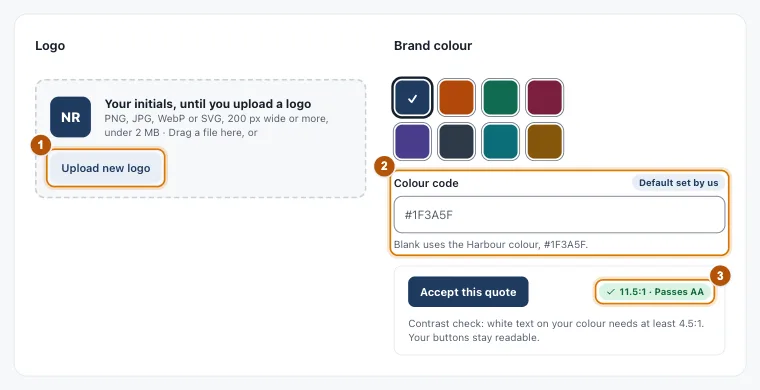
- Marker 1: Upload new logo
- Marker 2: Your colour code
- Marker 3: The contrast check
Your quote style
-
Pick a style
Open Settings > Quote style. There are four: Classic, Modern, Bold and Minimal. Each picture is your own newest quote in that style.
-
Preview it
Press Preview the quote page or Preview the PDF to see the real thing before you save.
-
Choose how line items show
Show each line with its price, or show the section total only, so line prices stay with you. Each quote can change this in the quote builder.
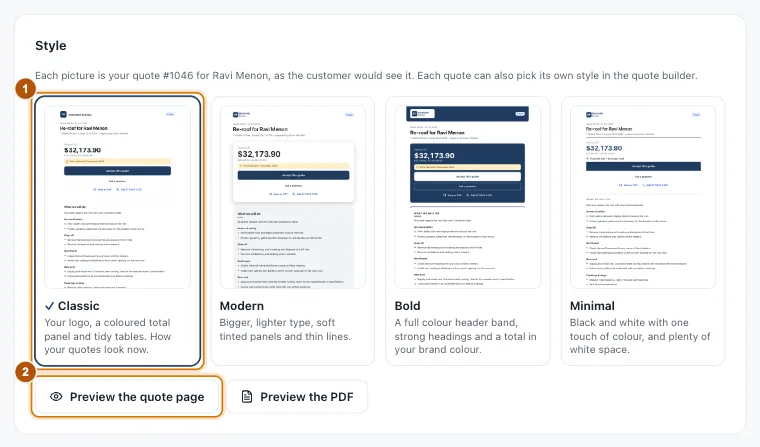
- Marker 1: The style your quotes use now
- Marker 2: Preview the quote page (or the PDF)
For the colours of your own screens, see Themes and your own colour.
The “Powered by” line
A small grey Powered by GotTheJob line sits at the very bottom of your customer page, PDF, Word and Excel files and emails, under your own details. Never in texts.
To turn it off, switch off Show “Powered by GotTheJob” on my quotes in Quote style and save.
Still stuck?
Reply to any email from us, or contact us using the form on the home page.